 Flashbag
Sign in with Claude
Connect your Claude account and use Claude models in Flashbag.
 Mitchel
3 min read · 6:54 watch
Mitchel
3 min read · 6:54 watch
Before you start
You’ll need Flashbag installed, access to your Claude account, and a terminal on the computer running Flashbag. The walkthrough shows Flashbag Desktop on a Mac.
1. Enable Claude in Flashbag
If this is your first time opening Flashbag
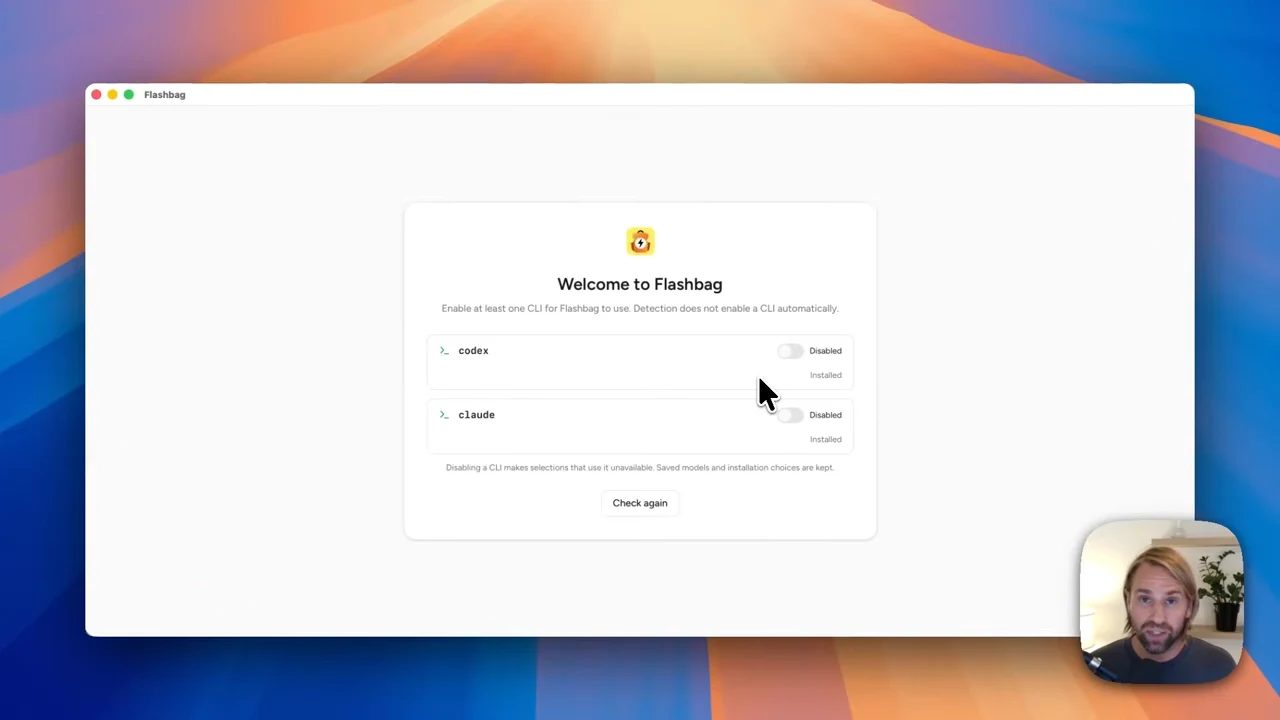
On the Welcome to Flashbag screen, enable Claude. If you see Install CLI, install it first. If Flashbag detects an existing installation, you can enable it directly.
Activate Flashbag
Choose Continue and enter the email address you use for Flashbag or want to use for your trial. Open the confirmation email and choose Activate Flashbag, then return to the app.
If you already use Flashbag
Open Settings → Agents → Claude to enable it or reconnect. You don’t need to repeat Flashbag’s email activation.
2. Run the sign-in command
Start from Claude’s sign-in controls
On the Dashboard, look for Claude under CLI dependencies and choose Sign in. To sign in again, use Reconnect under Settings → Agents → Claude.
Copy the command from Flashbag
Choose Copy command, then Open Terminal on the computer running Flashbag. Paste the command into that terminal and press Enter.
Use the command Flashbag gives you. It connects the Claude installation that Flashbag uses.
Follow Claude’s sign-in prompts
Claude opens its authorization flow. Sign in to the Claude account you want to use, complete any email verification it asks for, and choose Authorize. If you are already signed in, some steps may be skipped.
3. Check that you’re connected
Signing in while using Remote access
You can view Claude’s connection settings from Remote access, but its command still needs to run on the computer hosting Flashbag.
- Open Settings → Agents → Claude → Reconnect.
- Copy the command shown by Flashbag.
- Access the host computer directly, or through a remote desktop connection you already use.
- Open a terminal there, run the copied command, and complete Claude’s sign-in prompts.
- Return to Flashbag and check for Signed in.
If you only have access to the Flashbag browser tab, arrange access to the host computer before reconnecting Claude.
If something doesn’t look right
I’m signed in at claude.ai, but Flashbag isn’t connected.
The browser sign-in and Flashbag’s Claude connection are different steps. Start from Flashbag’s Sign in or Reconnect controls and complete the command and authorization flow.
I can’t open the host terminal from my browser.
That is expected in the remote flow shown in this guide. Use the computer running Flashbag, or connect to its desktop separately, to run the command.
Claude asks me to verify my email.
Complete the verification Claude presents, then continue to Authorize. The steps can vary depending on whether your browser is already signed in.
Still have a question?
Contact us. We’ll help you get there. ↗