 Flashbag
Set up remote access
Open the same Flashbag from another computer or your phone.
 Mitchel
3 min read · 5:11 watch
Mitchel
3 min read · 5:11 watch
Before you start
Remote access lets you open the Flashbag running on your host computer from a browser on another device. Your agents, conversations and memory are the same ones you use at home.
Runs Flashbag
Tailscale is built into Flashbag 0.4 and later. Connect it from Flashbag’s settings.
Opens Flashbag
Install the Tailscale app on your laptop or phone, then connect to the same Tailscale account.
1. Connect the computer running Flashbag
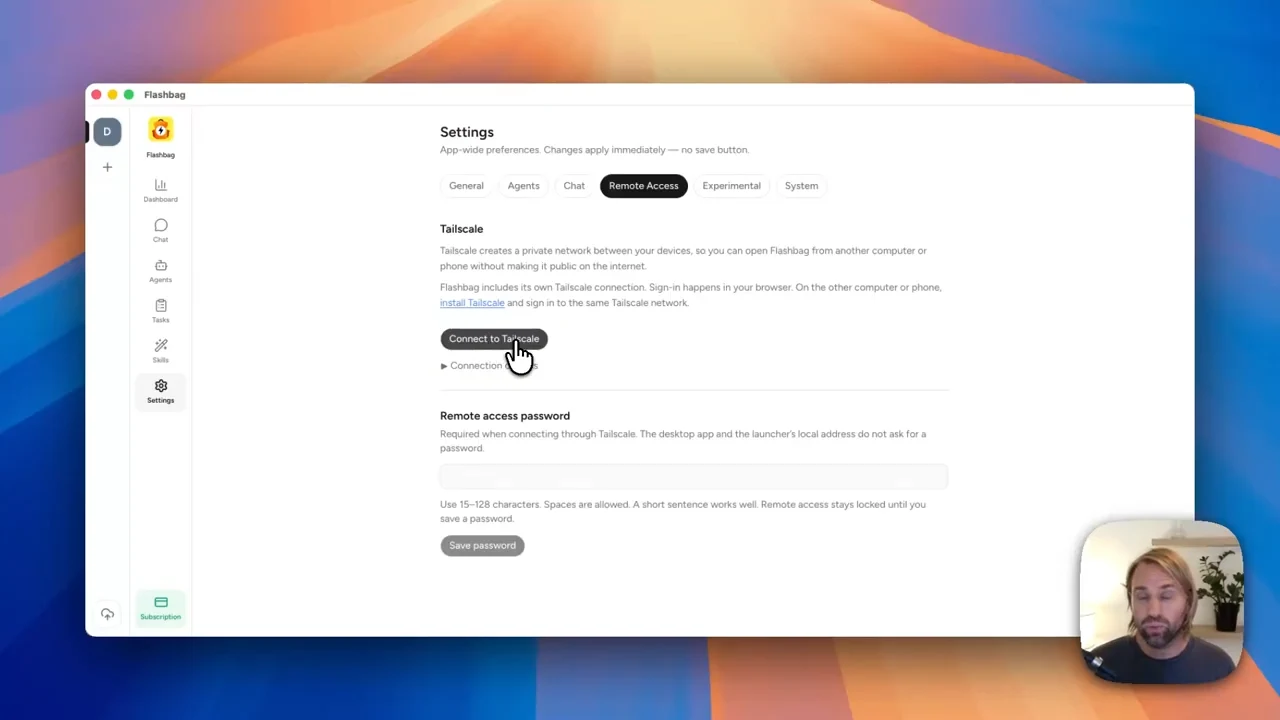
Open Remote Access settings
In Flashbag, go to Settings → Remote Access. You can also use the settings shortcut next to Remote access on the Dashboard.
Choose Connect to Tailscale
Flashbag prepares a sign-in link. Give it a moment, then open the link when it is ready.
Sign in to Tailscale
Use the Tailscale account you want all your devices to connect to. If you don’t have one yet, create an account at tailscale.com, then reopen the sign-in link from Flashbag and follow the connection prompts.
Wait for your Flashbag address
Return to Flashbag. Once it says Connected to Tailscale, wait for your Flashbag address to finish preparing.
2. Set your Remote access password
In the same settings, enter a Remote access password and choose Save password. Use 15–128 characters; spaces are allowed, so a memorable phrase works well.
This is the password you’ll enter when opening Flashbag remotely. Remote access stays locked until you save one.
3. Connect your laptop or phone
Install Tailscale on the other device
Get the Tailscale app for your computer or phone from the Tailscale download page.
Use the same Tailscale account
Open Tailscale on that device, sign in with the account you used on the host, and make sure it is connected.
Open your Flashbag address
Copy the address from Flashbag’s Remote Access settings and open it in a browser on your other device. Enter the Remote access password you saved.
4. You’re back with your team
Coming from Flashbag 0.2 or 0.3?
If you can’t connect
The address won’t open on my phone or laptop.
Check that Tailscale is installed and connected on that device, using the same account as the host. Make sure the host is awake, online, and still running Flashbag. Use the current address shown in Flashbag’s settings.
Flashbag asks for a password. Which one is it?
Enter the Remote access password you saved in Flashbag. This is separate from signing in to your Tailscale account.
Do I need to install Tailscale on the host too?
Flashbag 0.4 and later include their own Tailscale connection. For this setup, connect it in Flashbag. Install the separate Tailscale app on the other devices you want to connect from.
My old bookmark stopped working after the update.
Reconnect Tailscale in Flashbag’s Remote Access settings and save the new address. The address from the earlier setup is no longer the one to use.
Still have a question?
Contact us. We’ll help you get there. ↗