 Flashbag
Connect OpenRouter
Give your agents access to 300+ AI models through OpenRouter. Enable Pi, connect your API key, and choose a model for the job.
 Mitchel
4 min read · 5:59 watch
Mitchel
4 min read · 5:59 watch
Experimental: read this first
Before you start
You’ll need Flashbag installed and activated through Flashbag Launcher, an OpenRouter account, and credit for any paid models you want to use. OpenRouter usage is billed separately from Flashbag and from your Claude or ChatGPT subscription.
1. Enable Pi in Flashbag
Turn on experimental Pi support
Open Settings → Experimental and switch on Pi · advanced testing. This makes Pi’s settings available.
Enable or install Pi
Go to the Agents tab within Settings. In the CLIs section, find pi and turn on Enabled. If Pi isn’t installed, use Install and let it finish.
Find OpenRouter sign-in
Return to the Dashboard. Under CLI dependencies, find Pi and choose Sign in · openrouter. You can also open this from Pi’s settings. The connection asks for an OpenRouter API key.
2. Create your OpenRouter API key
Open API Keys
Sign in to OpenRouter and open API Keys. Create a new key and give it a recognizable name, such as Flashbag.
Set a spending limit and expiration
Choose a Credit limit that fits your budget. For a daily allowance, set Reset limit every… to daily. You can also choose an expiration date for the key.
A daily limit renews each day; it is not a one-time total budget. Choose a limit without a reset if you want to cap the key’s total spending.
Create and copy the key
Complete any verification OpenRouter requests. In the video, this includes entering a code sent by email. Copy the newly created key so you can paste it into Flashbag.
3. Connect the key to Flashbag
Paste your API key
Return to the Connect OpenRouter to Pi dialog in Flashbag. Paste the key into the API key field and submit it to connect.
Check the connection
Wait for Connected to Pi, then close the dialog. The OpenRouter entry under Pi should now show as signed in. Use Refresh in CLI dependencies if the Dashboard hasn’t updated yet.
4. Choose an OpenRouter model in chat
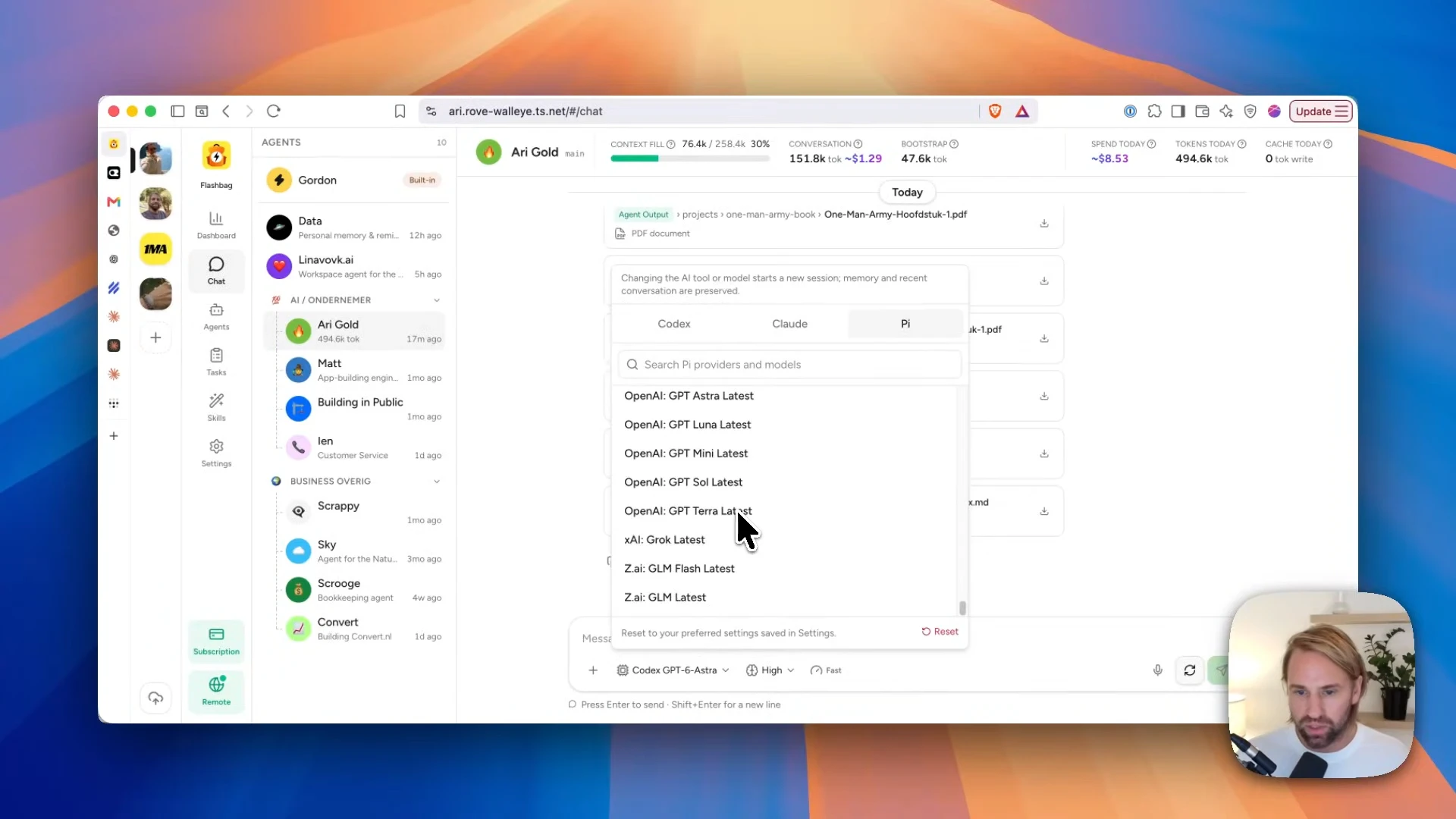
Open the model picker
Open a chat with your agent and select the model control beneath the message box.
Switch to Pi
Choose the Pi tab, then search or browse the OpenRouter models. Select the model you want to try.
Send a short message
Start with a simple request and check the reply. You can return to the picker whenever you want to use a different model.
Changing the AI tool or model starts a new session. Your agent’s memory and recent conversation are preserved, as the model picker explains.
No web search out of the box
Agents using this integration currently have no built-in web search. They cannot look up current information or check their answers against web sources out of the box. They rely on the model’s internal knowledge, the context you provide, and whatever files or tools they can access locally.
That knowledge can be outdated or incorrect, even when an answer sounds confident. Verify important claims independently, especially when a task depends on recent information.
Keep an eye on usage costs
In the walkthrough, Mitchel sends the same “hello” to two models and gets very different costs. Your message is only part of the request: the agent’s instructions and loaded memory also contribute to the input.
Use a cost-effective model for everyday work and check usage before moving to a more expensive one. Review your balance and spending in OpenRouter. The amounts shown in the video are examples from those requests, not a fixed price per message.
If something doesn’t connect
I can’t see Pi in Settings.
Enable Pi · advanced testing under Settings → Experimental first. Then return to Settings → Agents → CLIs to enable or install Pi.
Pi is enabled, but OpenRouter isn’t signed in.
Choose Sign in · openrouter under Pi. The openai-codex sign-in is a separate connection. Paste your OpenRouter API key into the OpenRouter form.
My key is rejected, or requests stop working.
Check that you copied the complete key and that it hasn’t expired or been deleted. Check your OpenRouter credit balance and the key’s spending limit too. If a recurring limit has been reached, wait for its reset or review the limit in OpenRouter.
The model list is empty.
Confirm that Pi is enabled and OpenRouter shows as signed in. Choose Refresh in the CLI settings, then reopen the model picker and select Pi. If it stays empty, contact us with the error message, without including your API key.
Still have a question?
Contact us. We’ll help you get there. ↗