 Flashbag
Install Flashbag Launcher on Mac
Download the Launcher, install Docker Desktop, open Flashbag in your browser, activate your account, and sign in with Codex or Claude.
 Mitchel
6 min read · 16:45 watch
Mitchel
6 min read · 16:45 watch
Before you start
You’ll need a Mac (Apple silicon or Intel) with about 5 GB of free disk space, the email address you bought Flashbag with or want to start your trial with, and a subscription with Claude, OpenAI, or both.
1. Install Flashbag Launcher
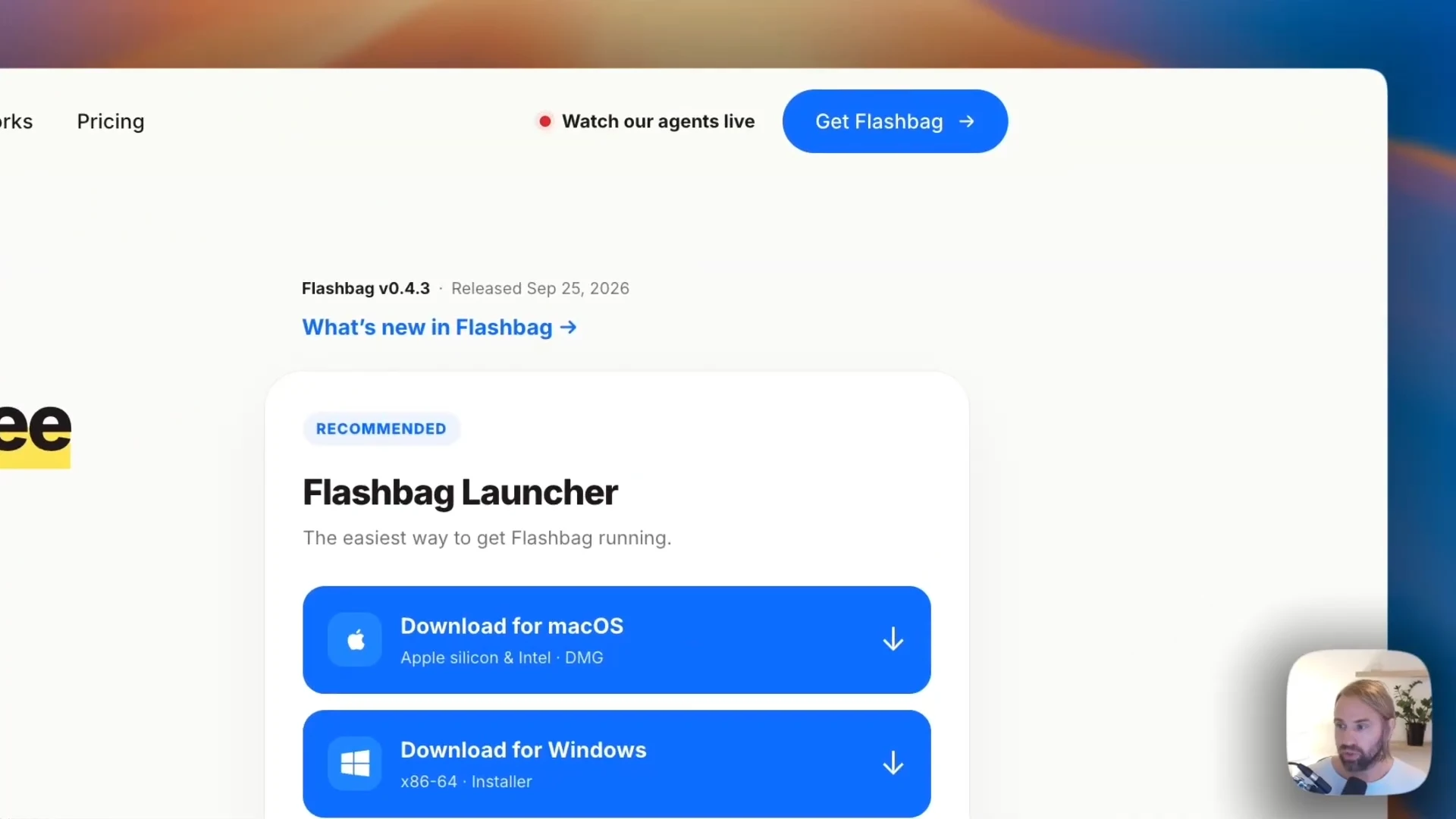
Download the Launcher for macOS
Go to the download page and download Flashbag Launcher for macOS.
Drag it into Applications
Open the download. In the window that appears, drag Flashbag Launcher into the Applications folder.
Open it from Applications
Go to your Applications folder and double-click Flashbag Launcher. macOS tells you it is an app downloaded from the internet and asks if you are sure. Choose Open.
2. Install Docker Desktop
Docker is the program that creates the workspace on your Mac where Flashbag runs. The Launcher points you to it.
Choose Download Docker in the Launcher
The Launcher opens Docker’s download page in your browser. Pick the version for your Mac: Apple silicon for newer Macs, Intel chip for older ones. The download is about 586 MB, so it can take a moment.
Drag Docker into Applications
Open the downloaded file and drag Docker into Applications, just like the Launcher. Docker is about 2.3 GB, so this copy takes a little while.
Open Docker and accept the agreement
Double-click Docker in Applications. Confirm the “downloaded from the internet” message with Open, then accept Docker’s service agreement.
Skip the account
Docker asks you to create an account. You don’t need one: choose Skip until you reach Docker Desktop itself. It shows no containers, images or volumes yet. That changes in the next step.
3. Download Flashbag through the Launcher
Choose Download Flashbag
Return to Flashbag Launcher. Now that Docker is installed, it shows a Download Flashbag button. Click it. The Flashbag image is about 3.4 GB, so give it time, depending on your internet speed.
Wait for “Flashbag is running”
When the download completes, Docker Desktop shows a container, the Flashbag image and its volumes, and the Launcher reports that Flashbag is running.
Open Flashbag
Choose Open Flashbag. Flashbag opens in a new browser tab, on the Welcome to Flashbag screen. From here on, you work with Flashbag in your browser.
4. Enable Codex and/or Claude
The Welcome screen asks which CLIs you want to install. A CLI is the harness Flashbag uses to run the models of OpenAI (Codex) and Anthropic (Claude Code) through your own subscription.
Install the CLI for the subscription you have
Choose Install Codex if you have an OpenAI subscription, Install Claude if you have a Claude subscription, or both. They install one after the other, not at the same time. Codex is quick; Claude takes a bit longer.
Only enable what you actually use
If you only have Claude, leave Codex disabled, and the other way round. An enabled CLI without a subscription does nothing, and the onboarding gives preference to Codex when it is enabled.
5. Activate Flashbag
Enter your email
Choose Continue and enter the email address you bought Flashbag with, or the address you want to start your free trial with.
Confirm from your inbox
Open the email “Let’s get Flashbag up and running” and choose Activate Flashbag. You’ll see Flashbag is ready.
Return to your Flashbag tab
The onboarding now asks you to sign in to the CLI you enabled: Sign in to Codex to get started, or Claude if that is the one you installed.
6. Sign in to Codex with ChatGPT
Copy the sign-in code
Choose Sign in to Codex. Flashbag creates a sign-in code; copy it.
Open ChatGPT to sign in
Choose Open ChatGPT to sign in. If you are already logged in, pick your account and choose Continue.
Paste the code
Paste the nine-character code and choose Continue. Flashbag shows Signing in to Codex, the window closes by itself, and you can Start with Gordon, who takes over the onboarding of your team.
The full Codex flow, including the remote way, is in Sign in with Codex.
7. Sign in to Claude through the Launcher
Claude signs in through a terminal. In Launcher, that terminal opens inside the workspace, which is exactly where Claude needs to be connected.
Copy the command from Flashbag
Open Settings → Agents → Claude. The instructions read: in Flashbag Launcher, choose Open Terminal, paste this command and press Enter. Choose Copy command.
Open the terminal in the Launcher
Go to Flashbag Launcher and choose Open Terminal. Paste the command and press Enter. The terminal shows a long URL.
Open the URL in your browser
Select the whole URL and copy it (right-click, Copy), then paste it into a new browser tab. Claude opens. Sign in to your Claude account if needed and choose Authorize.
Paste the authentication code back
Claude gives you an authentication code. Return to the terminal, paste it where it says “paste the code here if prompted” and press Enter. You won’t see the code appear while pasting; that is normal. The terminal confirms with Login successful.
If something doesn’t work
The Launcher says “Flashbag needs repair”.
This appears when Docker no longer has the Flashbag version the Launcher installed earlier, for example after a reinstall. Choose Repair Flashbag: the Launcher downloads the image again and sets Flashbag up. Your saved data is kept.
The Codex sign-in code is refused, or the sign-in gets stuck.
In ChatGPT, open Settings → Security and login, scroll down and switch on device code sign-in for Codex. Without that setting, the nine-character code cannot be used. Then try the sign-in again.
I pasted the Claude code and nothing shows in the terminal.
The terminal hides what you paste there on purpose. The code is in; press Enter and wait for Login successful.
I can’t install Codex and Claude at the same time.
That is expected: both use the same machinery underneath. Install one, let it finish, then install the other.
Can I use this Flashbag from my phone or another computer?
Yes. Once Flashbag runs in the Launcher, follow Set up remote access to open the same Flashbag from any device.
Still have a question?
Contact us. We’ll help you get there. ↗